Note - HOW TO items marked with an * require that you are a CVMG member and are logged in to the website. If you experience difficulty signing into the system, please check the "HELP" page. Still having troubles?? Then please contact the Web Administrator for additional help.
1 - How to access and download the CVMG News
To take advantage of this feature, you must be a CVMG member and logged into the site. Not a member, consider joining today!!
Once you are logged in, look at the "Menu Bar" at the top of the page and click on "CVMG News". On the resulting page, the CURRENT ISSUE of the CVMG News is located near the top left of the page.
These are all PDF files, and so you must have some software on your computer that can read read or decode these PDF files. A common software for this is called Adobe Acrobat and you will need to have some such reader software installed on your computer.
You will also see PAST ISSUES on the same page and can download these too!!
NOTE: These are large files and may take several minutes to load depending on the speed of your internet connection.
Problems associated with the download can be due to many things including your firewall settings, your ISP provider, the amount of available space on your local hard drive, your type of internet connection, etc. However if after trying to download one of these files a few times you continue to have trouble click here to request support.
Top
2 - How to update your Member Profile
To take advantage of this feature, you must be a CVMG member and logged into the site. Not a member, consider joining today!!
Your Member Profile contains all the information about your membership in the CVMG. It is created when you join the CVMG for the first time.
You control what information you share with other members and the public.
It is important to review your profile periodically to keep the information up to date.
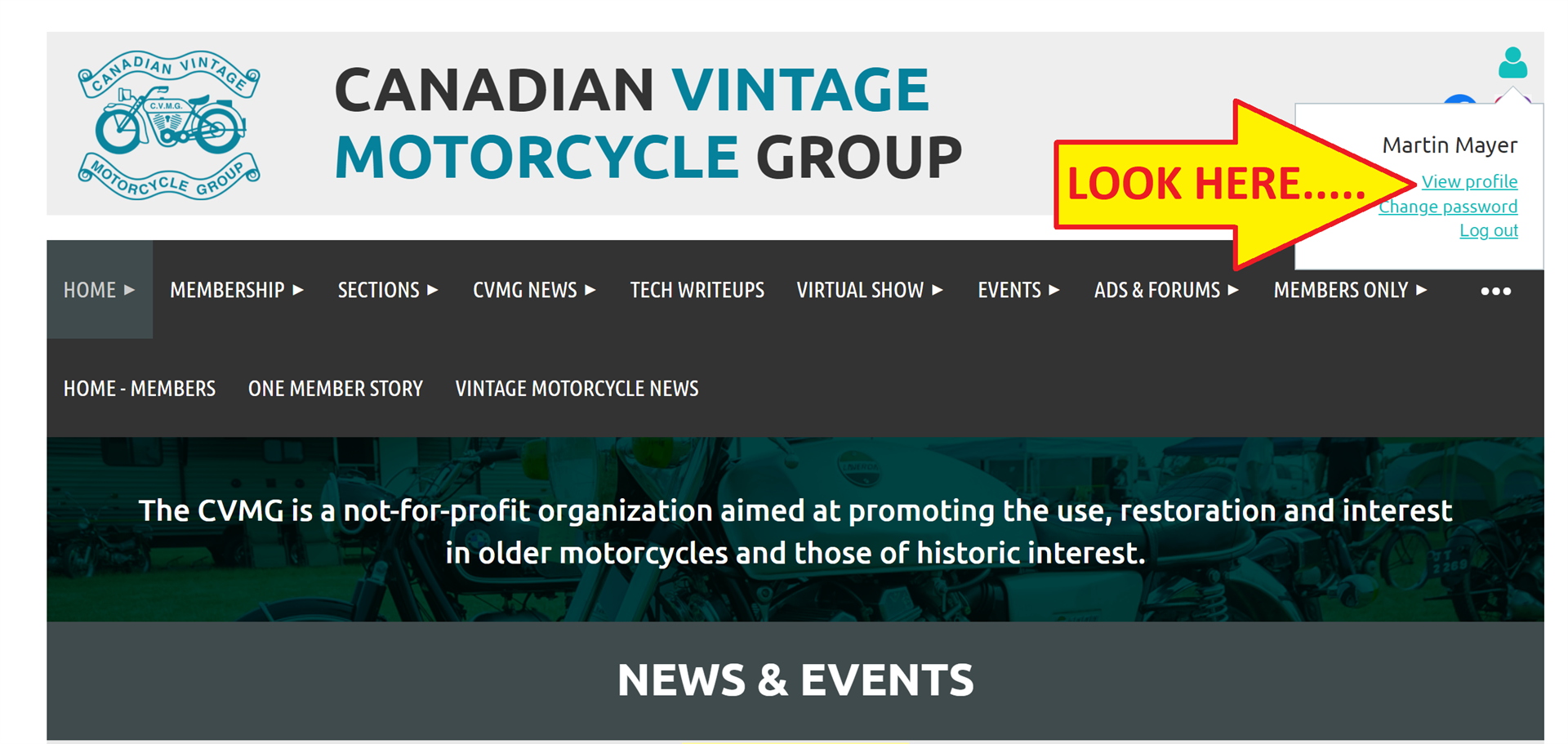
Click on View Profile (click on the login icon at the upper right corner of this page; View Profile is below your name):
Renew my membership
The Profile page has a "Renew until..." button on the right side of the page near your membership due date. Click this and follow the steps to renew. You have the option of paying by credit card, or mailing a cheque.
Change my information
Click on "Edit" and scroll down changing any information or adding a picture as desired. Be sure to scroll all the way to the bottom to "SAVE" once you are finished making changes.
You can use this option to decide NOT to receive a hardcopy of "The CVMG News" and to request an automatic e-mail when the current version of "The CVMG News" is posted.
Add my photo to my profile
You can add a single photo to your profile that is shown to members in the directory, etc. To do this, click "Edit" then scroll down to Photo (members or bikes). Click browse to locate the photo you want to include from your computer.
Be sure to scroll all the way to the bottom to "SAVE" once you are finished making changes.
You can change or remove the photo using the same instructions.
Change my privacy settings
Click on "Edit" and look for privacy settings. Be sure to "SAVE" once you change any information.
Top
3 - How to post ads in the CLASSIFIEDS
To take advantage of this feature, you must be a CVMG member and logged into the site. Not a member, consider joining today!!
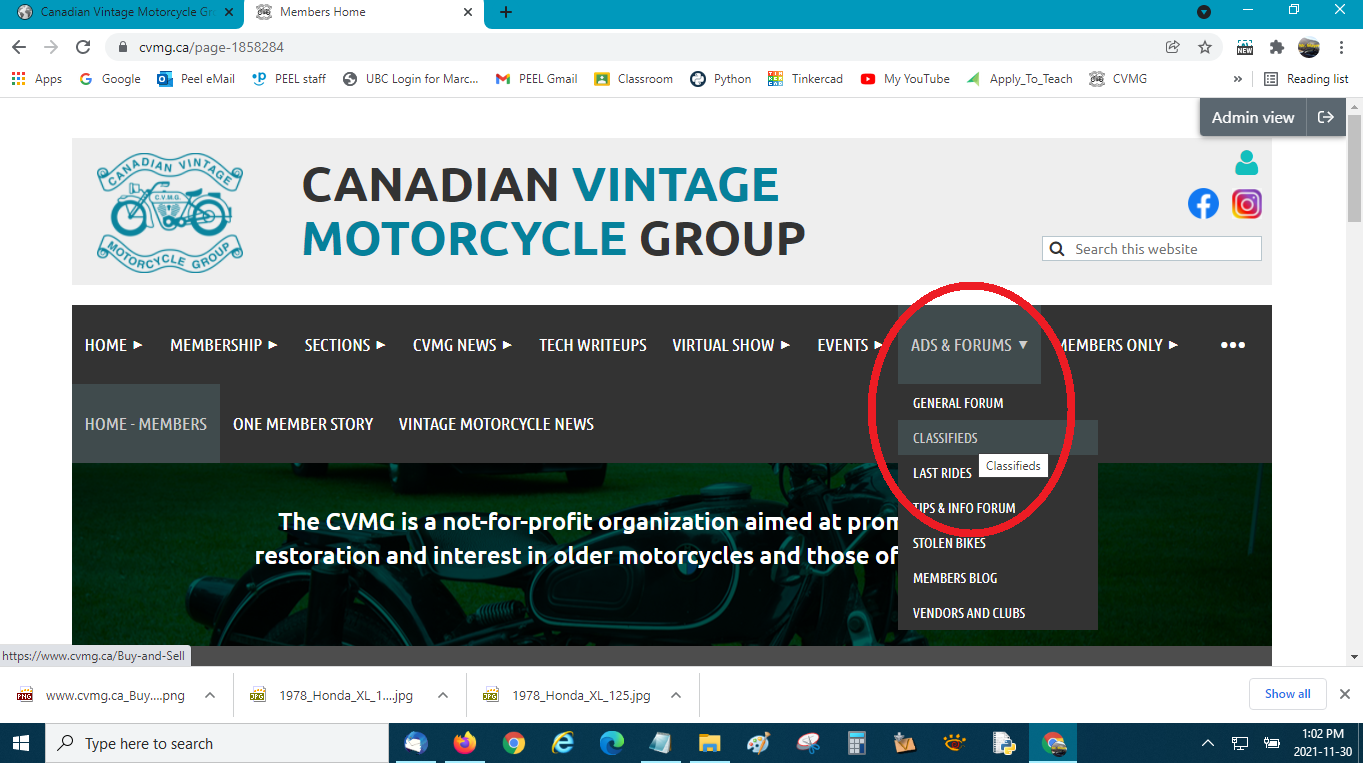
- From the HOME page, go to the ADS & FORUMS drop down menu and choose "CLASSIFIEDS".
- Further down that page, and you will see, in blue, three sections where you can place an ad; ITEMS WANTED, MOTORCYCLES FOR SALE, PARTS ETC. Choose the one section you want.
- Now, click on the "CREATE TOPIC" button and you should see this fill in the blank screen.
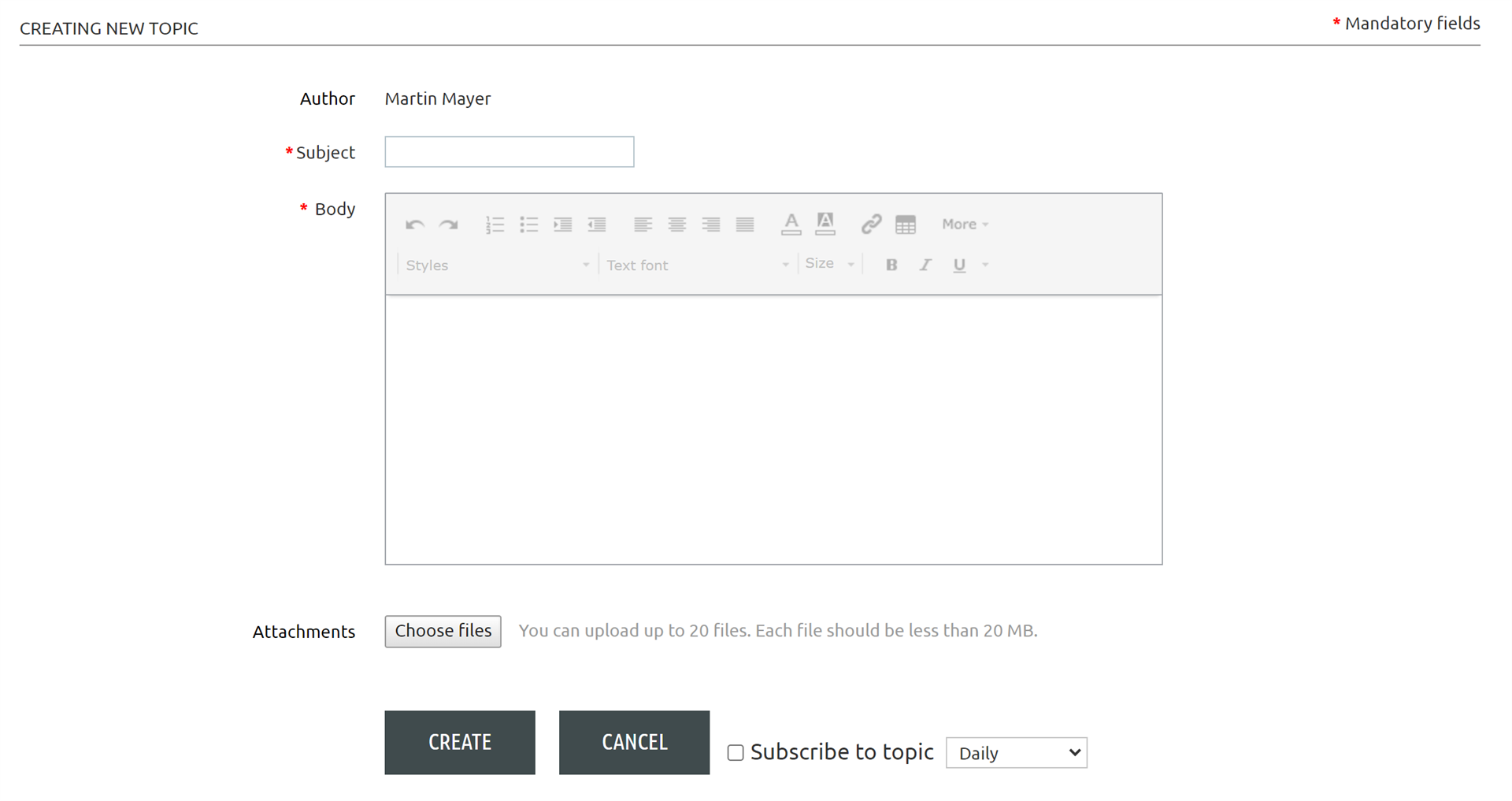
- In the first field, write a brief concise title for your item. In the next field, write your detailed description. Lastly, upload any pictures you want to include.
- Be sure to add a way for the viewer to contact you and remember, this page is viewable by anyone who looks at the CVMG site - member or not!
Top
4 - How to Remove/Edit an ad in the CLASSIFIEDS
To take advantage of this feature, you must be a CVMG member and logged into the site. Not a member, consider joining today!!
-
Go to the appropriate "CLASSIFIED" section where your ad is posted. You may need to search for your item if you don't recall the approximate date it was posted. It will appear in a list of other similiar posted ads as shown here.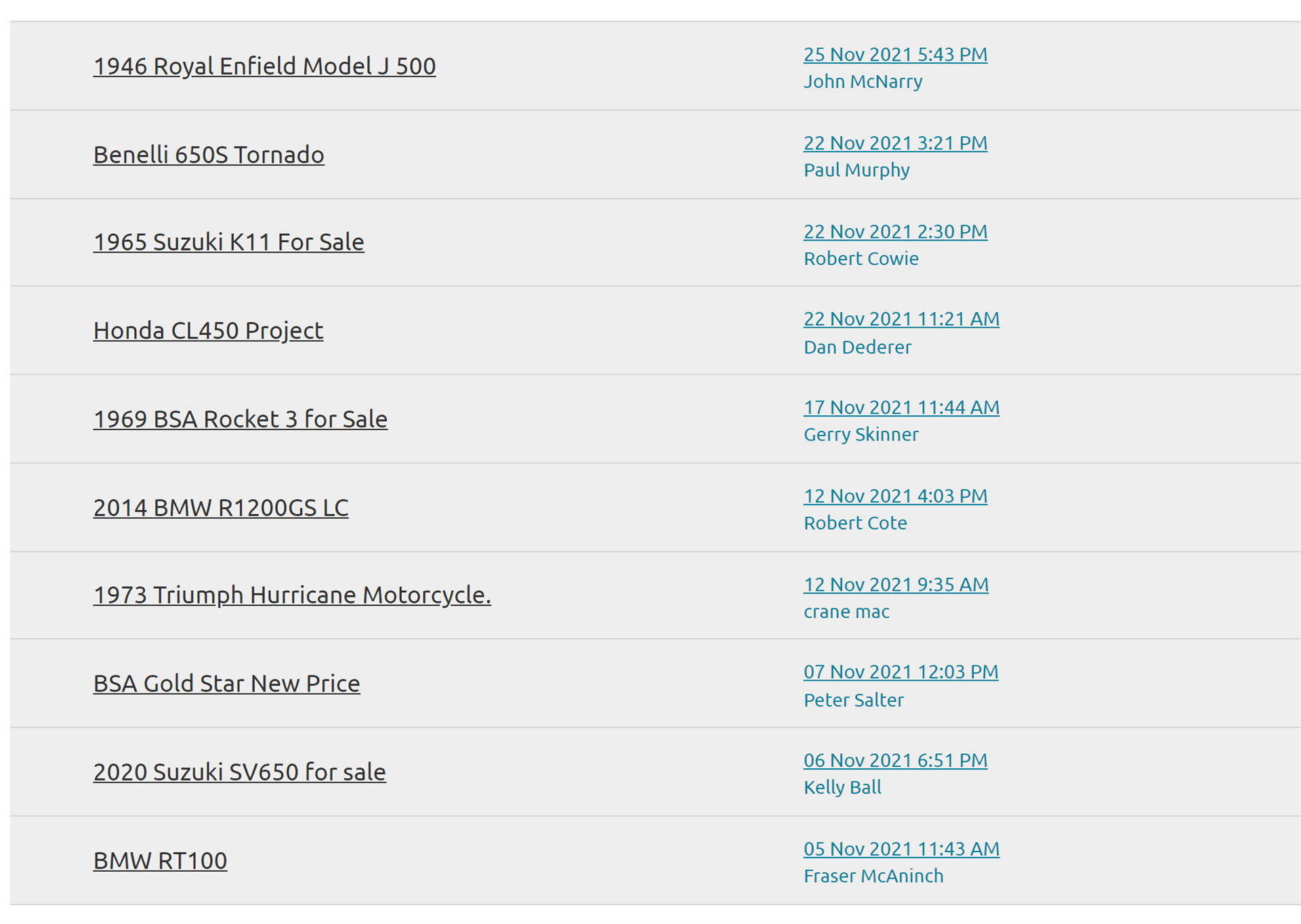
-
When you have located your ad, click to open it so your ad now becomes visible. (PLEASE NOTE: your ad has to have been created using the same email address you're currently using)
-
Now click the 3 dots next to the message number in the ad header. The ad header will now expand to show options for Edit, Delete, Quote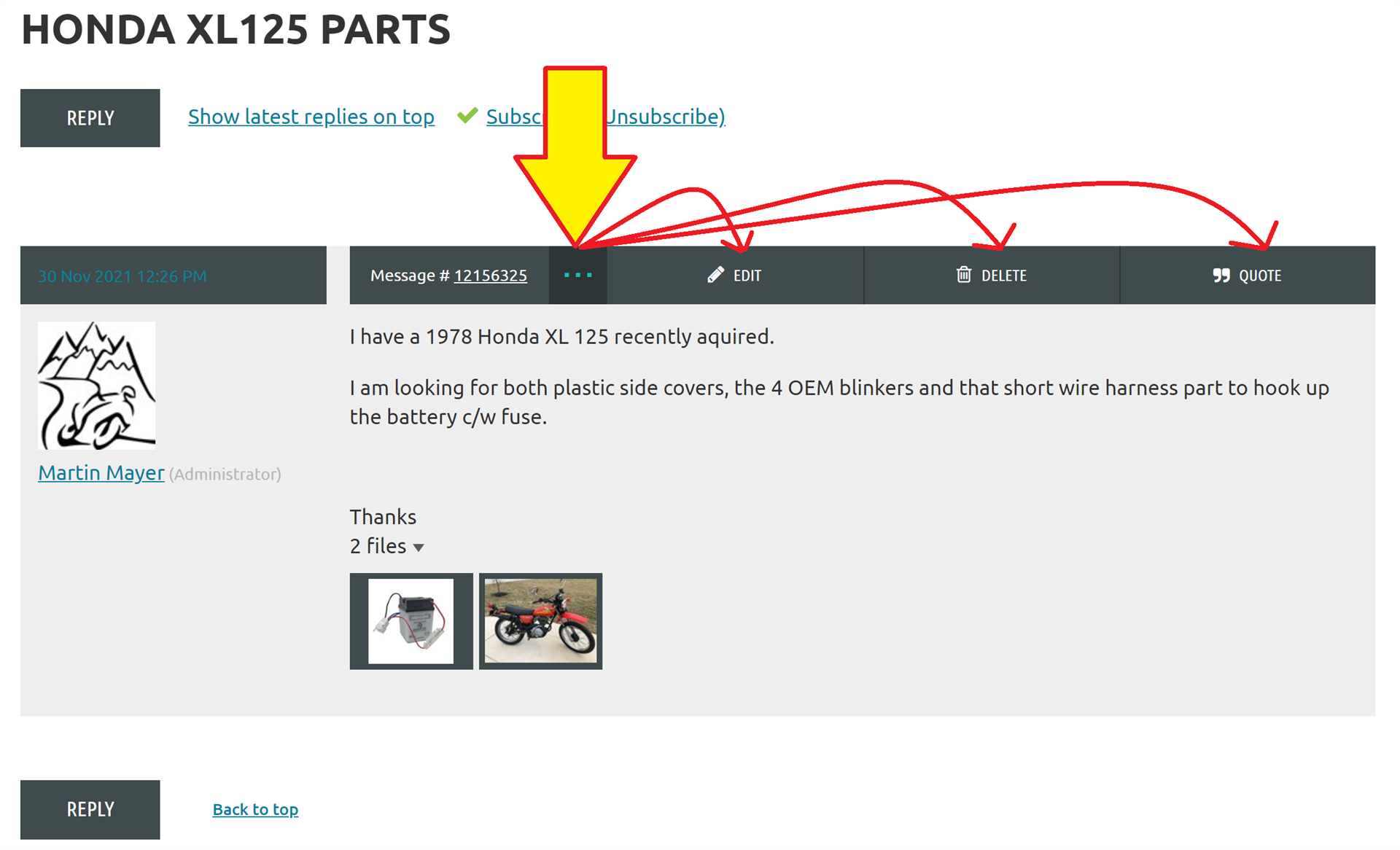
-
Click the necessary option, make all your changes, then click CONFIRM again. Done, your changes have been saved!
5 - How to Add Photos to Buy and Sell ads
To take advantage of this feature, you must be a CVMG member and logged into the site. Not a member, consider joining today!!
A frequently requested feature is the ability to include a photo(s) of an item in your ad, or forum posting.
Right under the text box of the ad, click on "Choose Files".
Highlight the photos in your computer folder and click "Open" at the bottom of the window. Please make sure your photos have the extensions: ".jpeg, .png, .tif, .tiff".
The system is not able to upload ".JPG" extension files.
Back in your ad, click on "Confirm".
You are done!
Top
6 - How to take a Screenshot
If you're having a problem using the CVMG website, it may be useful to capture what you're seeing when the problem happens. A screenshot is a picture of your computer screen stored in a file. The file can be attached to an email requesting support.
Click here to learn how to take a screenshot on your computer.
Click here to contact support for this website.
Top
7 - How to clear your browser's Cache & Cookies
The web browser is a software program on your computer used to access websites such as this one. The browser can save information (cache it!) so it's available again quickly if you visit the same site again. This is usually a handy feature, but occasionally, it means the browser is NOT seeing new changes to updated web site information.
When your suspect this is happening, depending on your operating system and browser settings, you should consider clearing the browser's cache of stored information, purge or refresh it in a sense. Click here for instructions on how to do this.
Also, when dealing with suspected browser problems, it may also be a good idea to clear cookies, those useful but pesky background nuggets your browser saves on your computer that track your preferences and histories on specific web sites. Sometimes, old or corrupted cookies can be a factor when a logins fails or other browsing problems occur. Clearing cookies may remedy your problems. Click here for instructions on how to do this.
Top
8 - How to translate the website to other languages
1) In your browser, go to "translate.google.ca"
2) Click on the "Websites" tab
3) Click on the "arrow down" symbol to the right of the text box and choose the target language
4) Enter: "cvmg.ca" in the "website" text box
5) Click on right arrow
6) All public accessible pages are now translated to your chosen target language. Enjoy!
Top


.png)